- Make sure your browser is up to date on your laptop or desktop
Breakout is compatible with Chrome, Safari, or Microsoft Edge and is only available on a desktop or laptop computer.
- Click the invitation link provided to you by your instructor
- Create your account
Sign in with your school email address through Google (Gmail) or Microsoft (Outlook).
For subsequent logins, visit app.breakoutlearning.com instead of the original invitation link.
- Grant Breakout access to your camera and microphone
Your browser will ask you permission for Breakout to use your camera and microphone. Please grant access so you can be heard and seen in your group's discussion.
- Access your assignment(s)
You may need to refresh your browser or re-click your invitation link in order to populate your Assignments (home) page.
Student Help Articles
Use the dropdowns below to review common Breakout Learning student workflows, including technical setup, best practices, tokens, groups, session scheduling, rescheduling, and pre-work.
Getting Started: Technical Details
What Are Breakout's Best Practices?
Watch the video below to learn Breakout Learning best practices for a successful experience. We'll walk through key tips and recommendations to help your group collaborate effectively, stay engaged, and get the most out of your Breakout Learning session.
How to Purchase if you opted out of Husky Book Bundle
1. Check if payment is required
- Confirm whether your institution covers payments for Breakout Learning.
- If payments are handled by your institution, assignments will be accessible immediately.
- If not, you must purchase tokens independently.
2. Locate unpaid assignments
- Go to your Assignments page.
- Find assignments marked as unpaid.
- Select Enroll on the right-hand side of the assignment.
3. Complete payment through Stripe
- After selecting Enroll, you will be redirected to Stripe.
- Choose from available payment options such as credit card or bank transfer.
- Complete the transaction on the external payment page.
4. Join a group to access materials
- After payment is processed, you must join a group.
- Follow the prompts to select or join a group.
- Once in a group, you will gain access to assignment materials.
5. Review related instructions
- For guidance on joining groups and additional features, refer to the provided links.
Creating and Joining a Group
1. Locate your assignment
- Go to the Assignments page.
- Find the assignment you want to begin.
2. Confirm grouping setup
- If your instructor is assigning groups, wait until you are placed.
- If student-led grouping is enabled, select the option to Join a group.
3. Choose or create a group
- Review the list of groups your peers have created.
- Use search to find groups by name or users.
- Apply filters to sort groups by day of the week or time of day.
- If no suitable group exists, start a new group.
4. Set or adjust a meeting time
- If you join an unscheduled group, add a meeting time for your session.
- If unsure, you may skip scheduling or edit it later.
5. Manage your group settings
- Return to the Assignment detail page after joining.
- Edit your group name and meeting time as needed.
- Leave the group if you wish to join another.
6. Complete pre-work materials
- Access the pre-work materials once you are in a group.
- Finish them before your scheduled group meeting.
7. Explore related resources
- For instructions on scheduling sessions and related tasks, see the provided links.
How do I Schedule My Breakout Session?
Step 1: Navigate to Your Class and Open the Assignment
- Click Select Meeting Time.
Step 2: Choose Your Preferences
- Click directly on the Date Box and choose the desired date.
- Then you can type in a specific time for your session.
Step 3: Save Your Settings
- Once you have made your selection, Click Choose Date to confirm.
Note: If you’d like to start right away instead, you can select ‘Select Now’ at the bottom of the screen.
How do I reschedule my Breakout session?
Step 1: Login
Log in to the Breakout Learning platform:
- Go to www.breakoutlearning.com. Using Google Chrome is highly recommended in order to ensure smooth running.
- Click Sign In, select I am a Student.
Step 2: Open Your Class
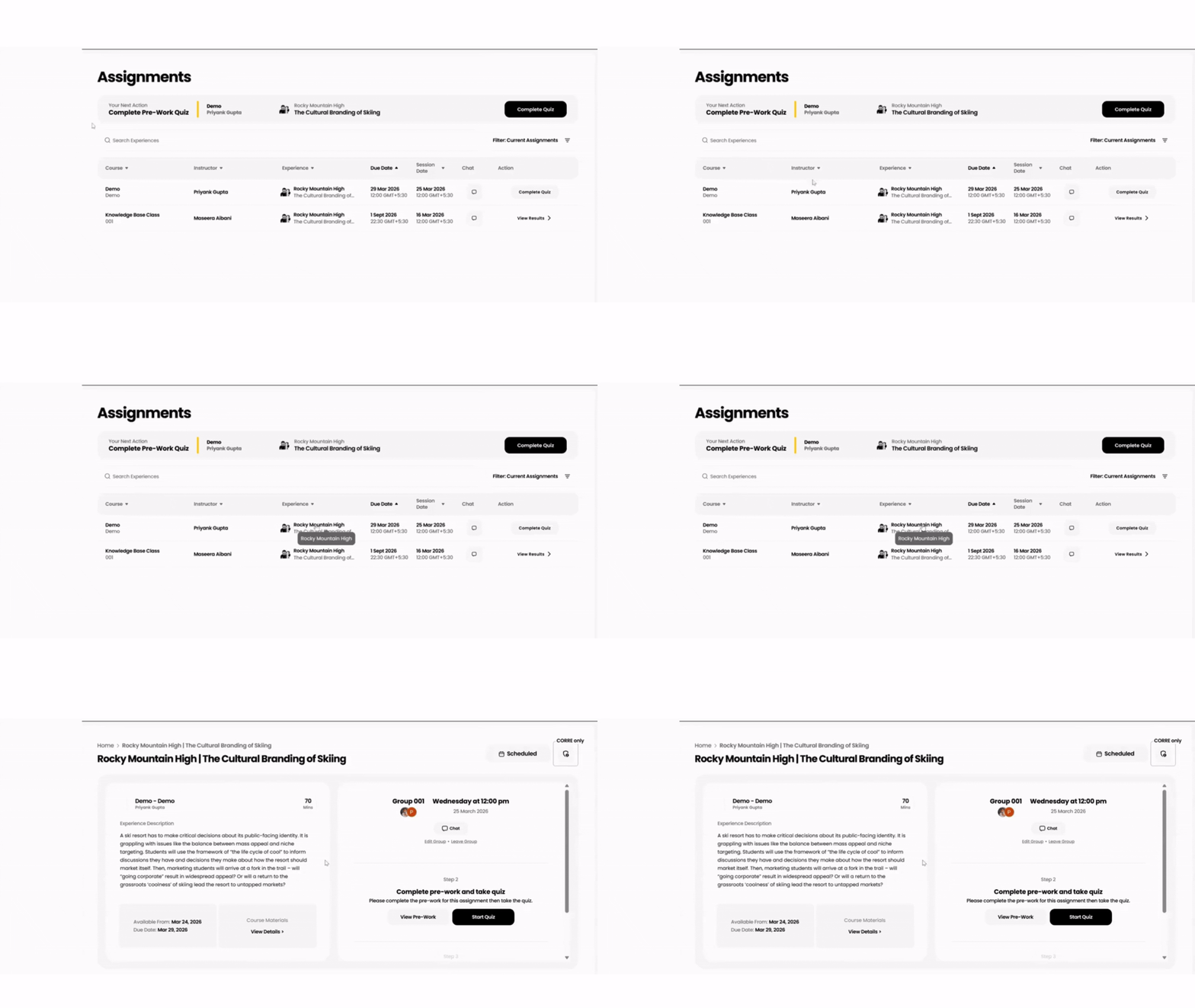
- Go to Classes.
- Click on the Class name which you want to reschedule.
Step 3: Edit date & time
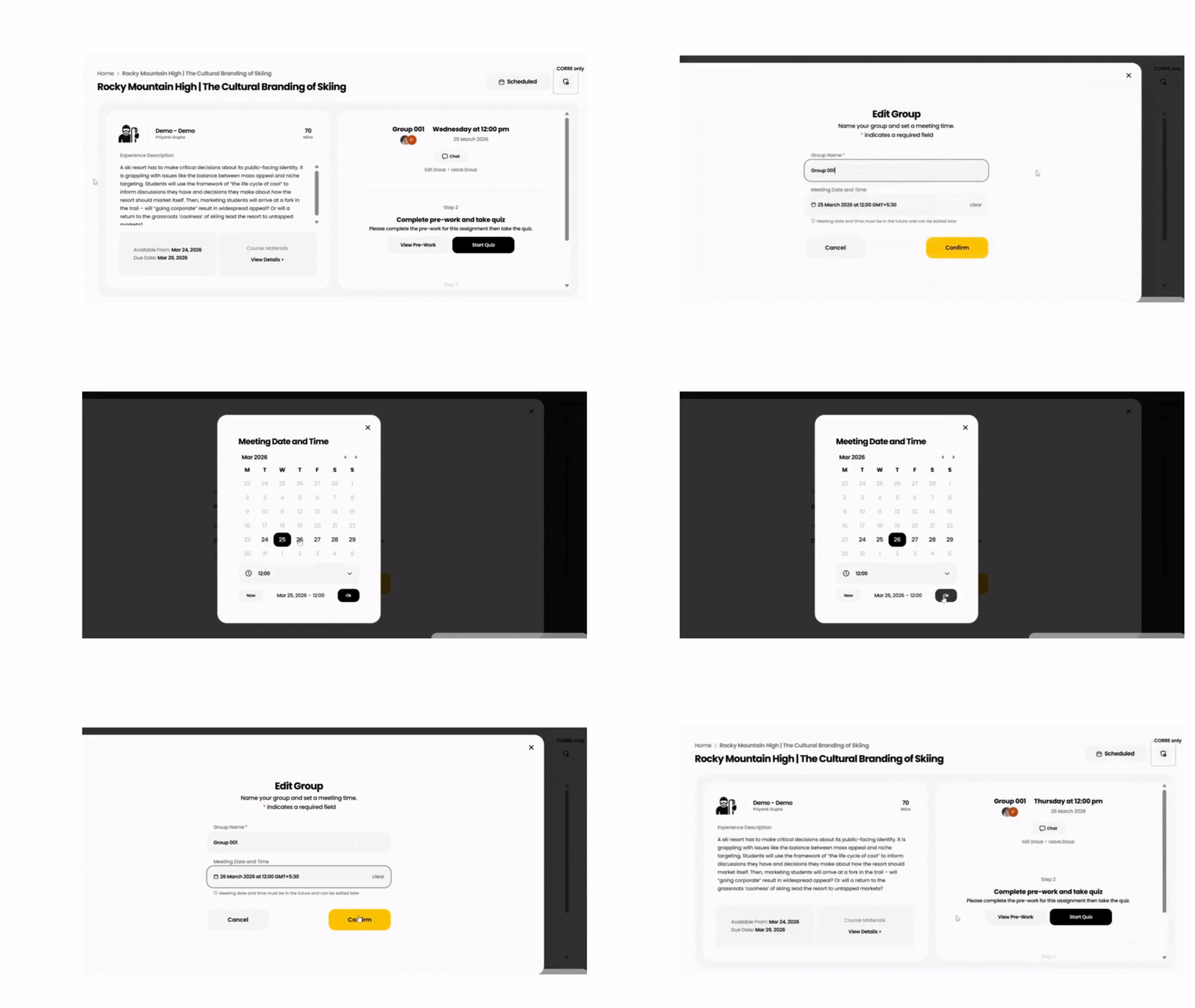
- Click Edit Group.
- Change the scheduled Date and Time.
- Click on Confirm.
Accessing Pre-Work Materials
1. Log in to Breakout Learning
Visit app.breakoutlearning.com and sign in with your institutional or course-linked account. Once logged in, you’ll see a list of your assigned modules on the home page. These modules correspond to the Breakout Learning experiences your instructor has assigned.
2. Open your assigned module
From the list, select the module for which you want to complete the pre-work. This opens the module page, where you’ll find a clear set of steps for completing the assignment. Under Step 2: Complete pre-work and take quiz, select View Pre-Work to begin.
3. Choose your preferred format
You’ll be prompted to choose between two versions of the pre-work: an audio podcast or a PDF document. Both contain the same content, so you can select the format that best fits your learning style. Use this time to review the key ideas and background information that will prepare you for your Breakout session.
4. Complete and submit the quiz
After reviewing the pre-work, close the content window using the X at the top right. Back on the module page, click Start Quiz under Step 2. Answer all questions carefully and submit your responses to complete this section. You’ll receive confirmation once your quiz submission has been recorded.
5. Proceed to your session
When both your pre-work and quiz are complete, Step 3 on the module page will unlock. You’ll now see the option to Join Session at your scheduled time. Completing these steps ensures you’re prepared and eligible to participate in the Breakout experience.
Tips and Tricks
- Review the Onboarding Guide, and video upon creating your account through your instructor invite.
- Make sure your browser is updated. We recommend Chrome because it updates automatically. We are not mobile compatible, only computers or laptops.
- Make sure to check "Settings" to test camera and microphone compatibility. If you have any issues, you need to update your Browser permissions or remove any adblockers (if installed).
- Make sure BL is the only app/website running that uses camera/video. Do not run alternative applications (Zoom, Teams etc.) while in the group session.
- Turn off any VPNs or Firewalls. Note: if you’re using an organization’s device, these may not be turned off due to your IT admin’s settings and you may need to use a personal device.
Student FAQs and Troubleshooting
How can I see my session results for completed discussions?
Step 1: Login
Log in to the Breakout Learning platform:
- Go to www.breakoutlearning.com. Using Google Chrome is highly recommended in order to ensure smooth running.
- Click Sign In, select I am a Student.
Step 2: Open Assignment
Open the completed Assignment.
- Navigate to your Assignments.
- Select the Discussion or Session you have already completed.
Step 3: Session Summary
Open the Session Summary.
- Click on the “View Summary”.
- This will take you to your post-session results dashboard.
How Do I Fix My Audio and Video Issue?
Step 1: Update Your Browser
Ensure your browser is running the latest version. Most modern browsers update automatically, but you can manually check:
- Go to Settings or the three-dot menu, look for Help or About [Browser Name], and the update check will usually run automatically.
For best results we recommend using the latest version of Google Chrome.
Step 2: Check Browser Permissions
Ensure the browser has permission to access your microphone and camera.
- While on the Breakout Learning site look for an icon on the left side of the address bar.
- Click the icon and ensure both Camera and Microphone settings are toggled on.
- If this fails, navigate to the browser's global Settings > Privacy and Security > Site Settings and manually adjust permissions for the specific website.
Step 3: Clear Cache and Cookies
Accumulated data can cause websites to load incorrectly or applications to malfunction.
- Open your browser's Settings or History.
- Find the option for Clear browsing data or Clear history.
- Select Cookies and other site data and Cached images and files.
- Set the time range to All time and click Clear data.
How does grading work?
Breakout Learning assignments are graded through an evaluation of a student's quality of discussion.
DQRs, or Discussion Quality Rubrics, assess transcripts of a Breakout Learning experience, and analyzes the student's performance against learning objectives and key concepts in three principal areas.
- Reasoned Position and Evidence
Think: "How well did I articulate and justify my position using evidence?"
- Peer Engagement
Think: "How well did I communicate with my peers?"
- Critical Thinking
Think: "How well did I demonstrate critical thinking through depth of reasoning, questioning underlying assumptions, etc.?"
This evaluation is delivered along with a score, justification through relevant quotes from your transcript, and a reasoning summary for the assigned grade.
How is my data being used?
We may use the personal information that we collect about you or that you provide to us:
- To provide you with the services, all related content, and any other information, products, or services that you request from us.
- To communicate with you and to process your requests, and to communicate with your school and your professors.
- To help maintain the safety, security, and integrity of the services, as well as our products, services, databases, and other technology assets.
- To carry out our obligations and enforce our rights arising from any contracts entered into between you and us.
Can I use my phone or tablet to do the Live Discussion?
At this time, Breakout Learning must be experienced on a desktop or laptop computer. Phones and/or tablets are not supported.
What if I accidentally close my browser/leave the session?
No problem! Navigate back to the Breakout platform, either at app.breakoutlearning.com or through your relevant LMS, Canvas or D2L Brightspace. Select the experience and click Join Session. You’ll be brought right back into your group's session.
Does the chat count toward participation?
No, the AI does not monitor or evaluate the chat. Only the transcript of your audio and camera statistics contribute to participation.
The chat simply allows for peer-to-peer communication during a Breakout session and can be particularly useful if a video is playing or if someone else is speaking.
How do I change groups?
- Click into the desired class and assignment. Under the chat feature and your group information, you will see a hyperlink that reads "Leave Group".
- Click "Leave group".
- Click "Join group" and create or join your desired group.
Why is my group locked?
If your group is locked, either your instructor has set the maximum group size and it is already full OR your group started without you.
Why can't I purchase tokens?
Participants purchase tokens to enroll in Breakout Learning modules through Stripe. If you are having trouble purchasing token, your VPN, antivirus software, and/or ad/content blocker may be interfering with Stripe's functions.
Why don’t I see any assignments?
There are filters that may be enabled on the participant homepage that show only current assignments, without displaying past and/or future assignments. Enabling those filters prevent seeing upcoming modules, so be sure to check their status.