- Make sure your browser is up to date on your laptop or desktop
Breakout is compatible with Chrome, Safari, or Microsoft Edge and is only available on a desktop or laptop computer.
-
Locate your assignment in Canvas
- Log in to Canvas and open your course.
- Select Assignments from the course navigation menu.
- Open the assigned Breakout Learning assignment.
-
Launch Breakout Learning
- When prompted, open the experience in a new browser tab.
- Breakout Learning will launch automatically and open your assignment.
-
Prepare for your assignment
- If payment is required, you'll be prompted to purchase access or enter an access code before continuing.
- Join or create a group and schedule a meeting time with your group members.
- Review the assignment details, including your pre-work, quiz, and scheduled session.
- Complete the required pre-work and pre-quiz before your live session if available.
-
Start your session
- When your scheduled session begins, click Start Session or Join Session.
- You'll enter the Breakout Learning experience and begin collaborating with your group.
Student Help Articles
Use the dropdowns below to review common Breakout Learning student workflows, including technical setup, best practices, tokens, groups, session scheduling, rescheduling, and pre-work.
Getting Started: Technical Details
What Are Breakout's Best Practices?
Watch the video below to learn Breakout Learning best practices for a successful experience. We'll walk through key tips and recommendations to help your group collaborate effectively, stay engaged, and get the most out of your Breakout Learning session.
How to Purchase if you opted out of First Day
1. Check if payment is required
- Confirm whether your institution covers payments for Breakout Learning.
- If payments are handled by your institution, assignments will be accessible immediately.
- If not, you must purchase access independently.
2. Complete payment through Stripe
- If you opted out of First Day, you will be prompted to pay through Stripe after UCF's Add/Drop deadline.
- Choose from available payment options such as credit card or bank transfer.
- Complete the transaction on the external payment page.
4. Join a group to access materials
- After payment is processed, you must join a group.
- Follow the prompts to select or join a group.
- Once in a group, you will gain access to assignment materials.
5. Review related instructions
- For guidance on joining groups and additional features, refer to the provided links.
Creating and Joining a Group
1. Locate your assignment
- Go to your Canvas course.
- Click into the Breakout assignment and open it in a new tab.
2. Confirm grouping setup
- If your instructor is assigning groups, wait until you are placed.
- If student-led grouping is enabled, select the option to Join a group.
3. Choose or create a group
- Review the list of groups your peers have created.
- Use search to find groups by name or users.
- Apply filters to sort groups by day of the week or time of day.
- If no suitable group exists, start a new group.
Note: If you are completing the assignment individually, you may already be placed in a group automatically. In that case, you do not need to create or join another group unless your instructor directs you to do so.
4. Set or adjust a meeting time
- If you join an unscheduled group, add a meeting time for your session.
- If unsure, you may skip scheduling or edit it later.
5. Manage your group settings
- Edit your group name and meeting time as needed.
- Leave the group if you wish to join another.
6. Complete pre-work materials
- Access the pre-work materials once you are in a group.
- Finish them before your scheduled group meeting.
Note: Your instructor may assign additional pre-work directly through your LMS. Be sure to review your course materials and assignment instructions for any related readings, videos, or other required work.
7. Explore related resources
- For instructions on scheduling sessions and related tasks, see the provided links.
How do I Schedule My Breakout Session?
1. Open your assignment
- Open the Breakout Learning assignment.
- Click Select Meeting Time.
2. Select a meeting date and time
- Click the date field and select your preferred meeting date.
- Enter or select the desired meeting time.
- If your group is ready to begin immediately, click Select Now.
3. Save your settings
- Click Choose Date to save the meeting time.
How do I reschedule my Breakout session?
Step 1: Open the Canvas assignment
- Go to your Canvas course.
- Open the Breakout assignment.
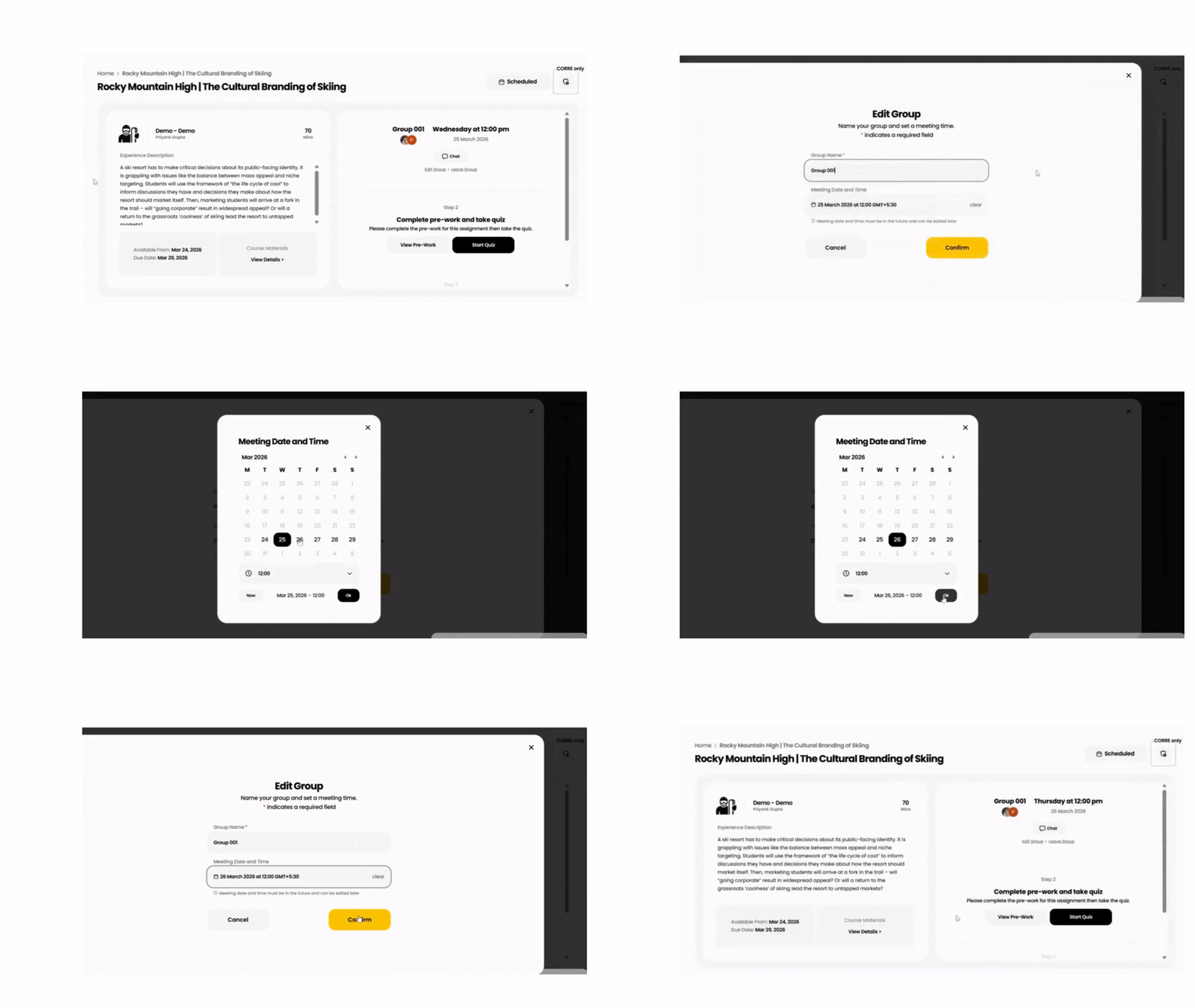
Step 2: Edit date & time
- Click Edit Group.
- Change the scheduled Date and Time.
- Click on Confirm.
Accessing Pre-Work Materials
1. Open your assignment
- Open the Breakout Learning assignment.
- On the assignment page, locate Step 2: Complete Pre-Work and Take Quiz.
- Click View Pre-Work to begin.
2. Review the pre-work
- Select either the podcast (if available) or the PDF version of the pre-work.
- Both formats contain the same content, so choose the one that best fits your learning preferences.
- Review all assigned materials before moving on to the quiz.
3. Complete the quiz
- Click Start Quiz.
- Answer all questions and submit your responses.
- You'll receive confirmation once your quiz has been successfully submitted.
4. Join your Breakout session
- After completing both the pre-work and quiz, the next step in your assignment will become available.
- When it's time for your scheduled session, select Join Session to begin your Breakout experience.
Note: Your instructor may assign additional pre-work directly through your LMS. Be sure to review your course materials and assignment instructions for any related readings, videos, or other required work.
Tips and Tricks
- Review the Onboarding Guide.
- Make sure your browser is updated. We recommend Chrome because it updates automatically. We are not mobile compatible, only computers or laptops.
- Make sure to check "Settings" to test camera and microphone compatibility. If you have any issues, you need to update your Browser permissions or remove any adblockers (if installed).
- Make sure BL is the only app/website running that uses camera/video. Do not run alternative applications (Zoom, Teams etc.) while in the group session.
- Turn off any VPNs or Firewalls. Note: if you’re using an organization’s device, these may not be turned off due to your IT admin’s settings and you may need to use a personal device.
Student FAQs and Troubleshooting
How can I see my session results for completed discussions?
1. Open your completed assignment
- Navigate to your completed Breakout Learning assignment.
.gif?width=1286&height=724&name=Untitled%20design%20(7).gif)
2. View your session summary
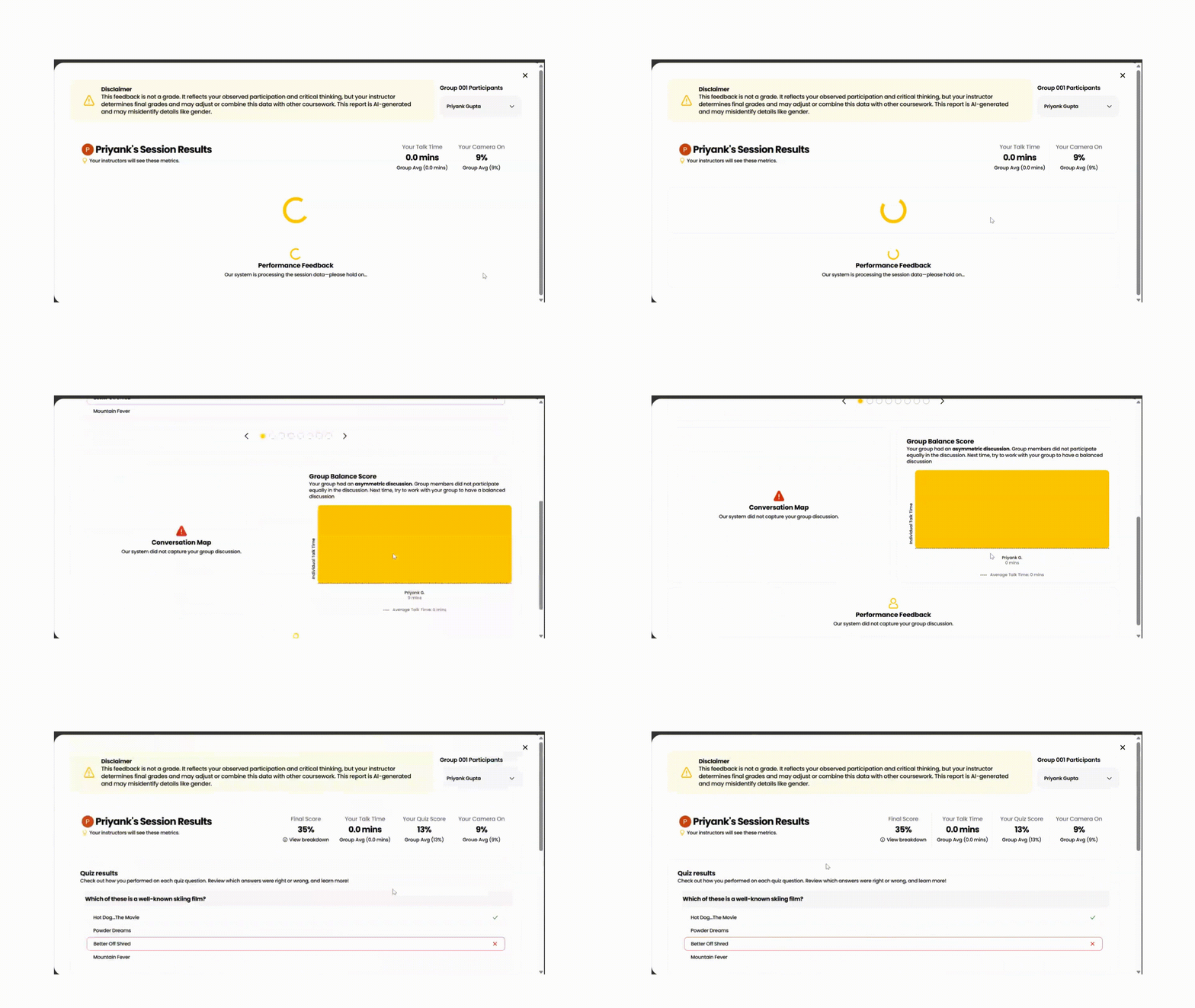
- Click View Summary.
- Your post-session results dashboard will open.
3. Review your results
Your session summary includes:
- Quiz results
- Discussion participation and contribution
- Session feedback
- Rubric performance
How Do I Fix My Audio and Video Issue?
If you're having trouble with your microphone, camera, or audio during a Breakout Learning session, try the following troubleshooting steps.
1. Update your browser
Make sure you're using the latest version of your web browser.
For the best experience, we recommend using the latest version of Google Chrome.
To check for updates:
- Open your browser's Settings or Help menu.
- Select About Google Chrome (or your browser's equivalent).
- Install any available updates and restart your browser.
2. Check your browser permissions
Breakout Learning requires permission to access your camera and microphone.
- While on the Breakout Learning site, click the site permissions icon next to the address bar.
- Verify that Camera and Microphone access are set to Allow.
- If needed, open your browser's Settings > Privacy & Security > Site Settings and update the permissions for Breakout Learning.
.gif?width=1200&height=676&name=getsitecontrol__convert-video-to-gif__free%20(10).gif)
3. Verify your device settings
Before joining your session:
- Confirm your microphone and camera are connected and powered on.
- Make sure they are not being used by another application (such as Zoom, Microsoft Teams, or Google Meet).
- Select the correct microphone, camera, and speakers in your computer's audio and video settings.
4. Clear your browser cache and cookies
Stored browser data can sometimes prevent websites from loading correctly.
- Open your browser's Settings.
- Select Clear browsing data.
- Clear Cookies and other site data and Cached images and files.
- Restart your browser and try again.
5. Restart your browser or computer
If the issue persists:
- Close all browser windows and reopen your browser.
- If necessary, restart your computer before launching your Breakout Learning session again.
6. Still having trouble?
If you've completed the steps above and your audio or video still isn't working:
- Try joining from another supported browser or device.
- Contact your Instructor if you're unable to participate in your scheduled session.
- Contact Breakout Learning Support at support@breakoutlearning.com for additional assistance.
How does grading work?
Your grade on a Breakout Learning assignment comes from a combination of inputs: the AI evaluation of your discussion, attendance, completion, and quiz scores where quizzes are part of the assignment. Your instructor sets the weight of each input and how much the assignment counts toward your course grade.
The AI evaluation uses the Discussion Quality Rubric (DQR), which analyzes the transcript of your Breakout experience against the learning objectives and key concepts of the assignment across three dimensions:
- Reasoned positioning and evidence. How well did you articulate and justify your position using evidence?
- Peer engagement. How well did you communicate with your peers?
- Critical thinking. How well did you demonstrate depth of reasoning, question underlying assumptions, and work through the material?
Each student is evaluated individually, so in a group discussion you receive your own assessment rather than a shared one. Peer engagement does not apply to solo assessments.
Along with your score, you receive relevant quotes from your transcript that support the evaluation and a summary of the reasoning behind the grade.
How is my data being used?
Breakout Learning uses your personal information only to provide and support your learning experience.
We may use the personal information that we collect about you to:
- Provide access to Breakout Learning, including course content, assignments, and related services.
- Communicate with you about your account, assignments, or support requests, and when appropriate, communicate with your institution and Instructors.
- Maintain the safety, security, and reliability of our platform, products, and technology.
- Fulfill our contractual obligations and comply with applicable legal requirements.
What We Don't Do
Breakout Learning is committed to protecting your privacy. We do not:
- Sell your personal information to third parties.
- Use your personal information for third-party advertising or marketing.
- Share your personal information with advertisers or data brokers.
- Use your personal information for purposes unrelated to providing and improving the Breakout Learning service.
- Allow other participants to access your personal information beyond what is necessary for participating in assigned learning activities.
For more information about how Breakout Learning collects, uses, and protects your information, please review our Privacy Policy or contact support@breakoutlearning.com with any questions.
Can I use my phone or tablet to do the Live Discussion?
At this time, Breakout Learning must be experienced on a desktop or laptop computer. Phones and/or tablets are not supported.
What if I accidentally close my browser/leave the session?
No problem! Navigate back to your Canvas course. Open the Breakout assignment and click Join Session. You’ll be brought right back into your group's session.
Does the chat count toward participation?
The chat is designed to help group members communicate before and during a Breakout Learning session. It's especially useful for coordinating with your group before the session, scheduling or rescheduling your meeting time, sharing updates, or asking questions before the discussion begins. During the session, the chat can also be helpful for brief communication when someone else is speaking or when a video or other content is being presented.
For the best experience, actively participate in the discussion using your microphone and engage with your group throughout the session.
How do I change groups?
- Click into the desired assignment. Under the chat feature and your group information, you will see a hyperlink that reads 'Leave Group'
- Click "Leave group"
- Click "Join group" and create or join your desired group.
Why is my group locked?
If your group is locked, either your instructor has set the maximum group size and it is already full OR your group completed the session without you. Reach out to your instructor for assistance.
Why can't I purchase access?
Participants purchase access to Breakout Learning assignments through Stripe. If you're having trouble completing your purchase, your VPN, antivirus software, or ad/content blocker may be interfering with Stripe's checkout process.
If the issue persists after disabling these tools, try using a different browser or device. If you still can't complete your purchase, contact support@breakoutlearning.com for assistance.