
Student Onboarding Guide
(Platform Participant Pay)
Make sure your browser is up to date on your laptop or desktop.
Breakout is compatible with Chrome, Safari, or Microsoft Edge and is only available on a desktop or laptop computer. It is not mobile compatible.
Click the invitation link provided by your instructor.
Use the invitation link from your instructor to access your Breakout Learning course and assignments.
Create your account.
Sign in with your institutional email address through Google for Gmail or Microsoft for Outlook.
For subsequent logins, visit app.breakoutlearning.com.
View your assignment or assignments.
If you do not see your assignment right away, refresh the page or click your invitation link again. This will make the assignment appear.
Click into your assignment to get started. The first time you open it, you will be prompted to pay.
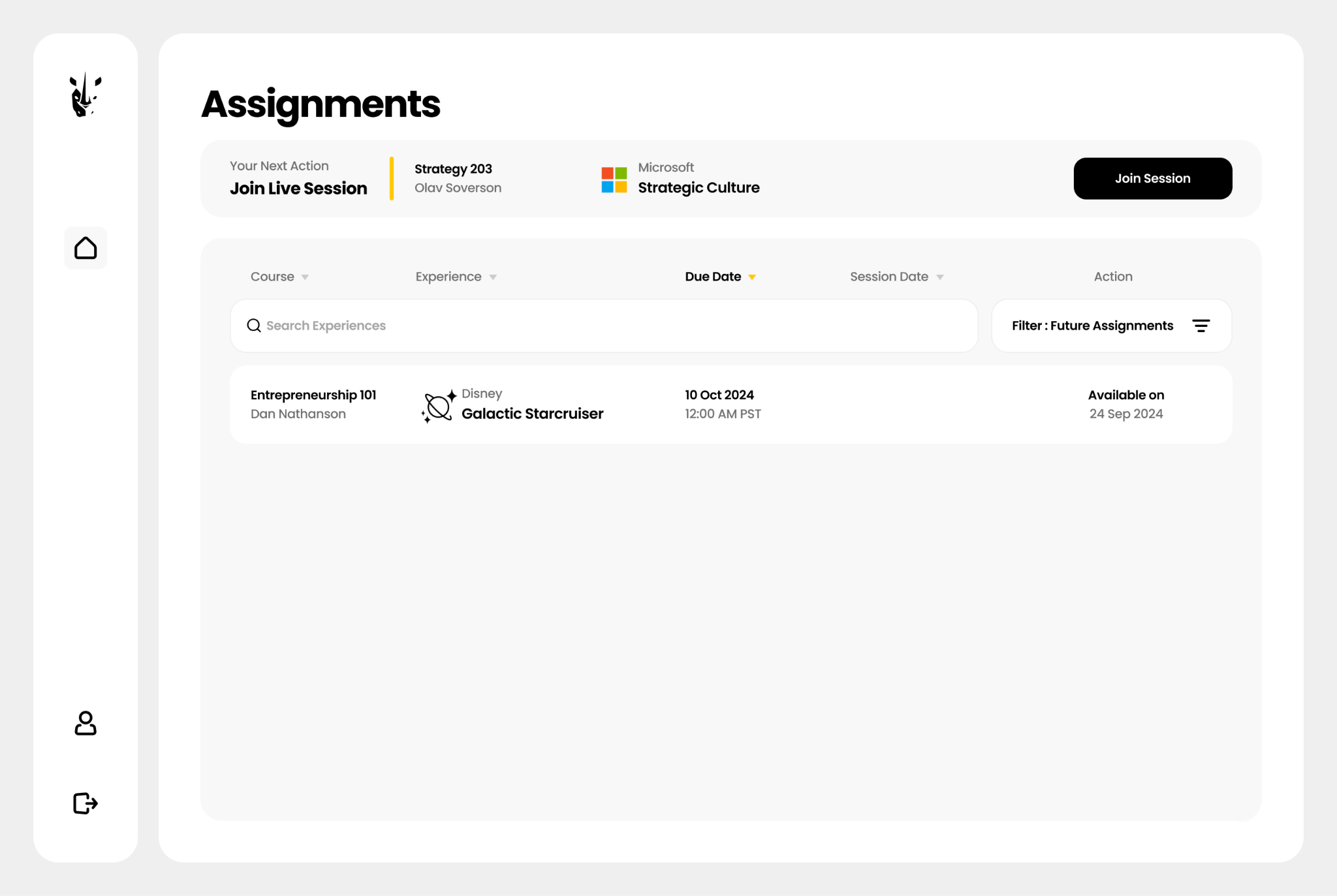
Complete your payment.
When you open your assignment for the first time, you will be prompted to pay. Depending on how your class is set up, you may see one or both of the following options:
- Pay with Stripe: Select Pay using Stripe, follow the prompts to enter your payment information, and click Pay.
- Use an Access Code: Select Access Code and enter the code you received from your university's bookstore.
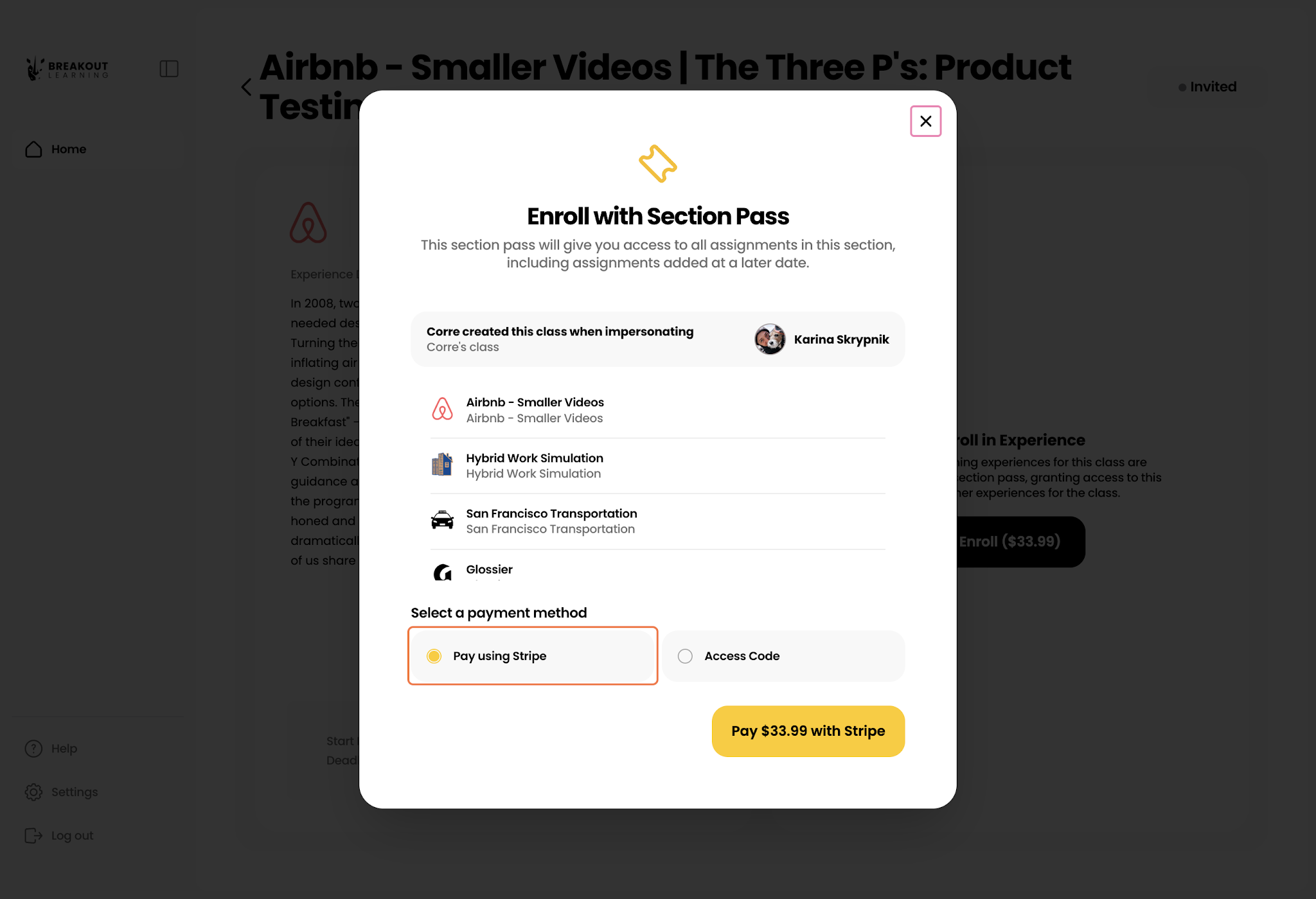
Join or Create Your Group
If your instructor has already placed you in a group, skip ahead to Step 7.
- Click Join Group.
- If there are empty pre-made groups available, join one and rename it.
- If not, click Start a New Group and give it a name that is easy for others to recognize.
- To switch groups, click Leave Group, then repeat the steps above to join or create a new group.
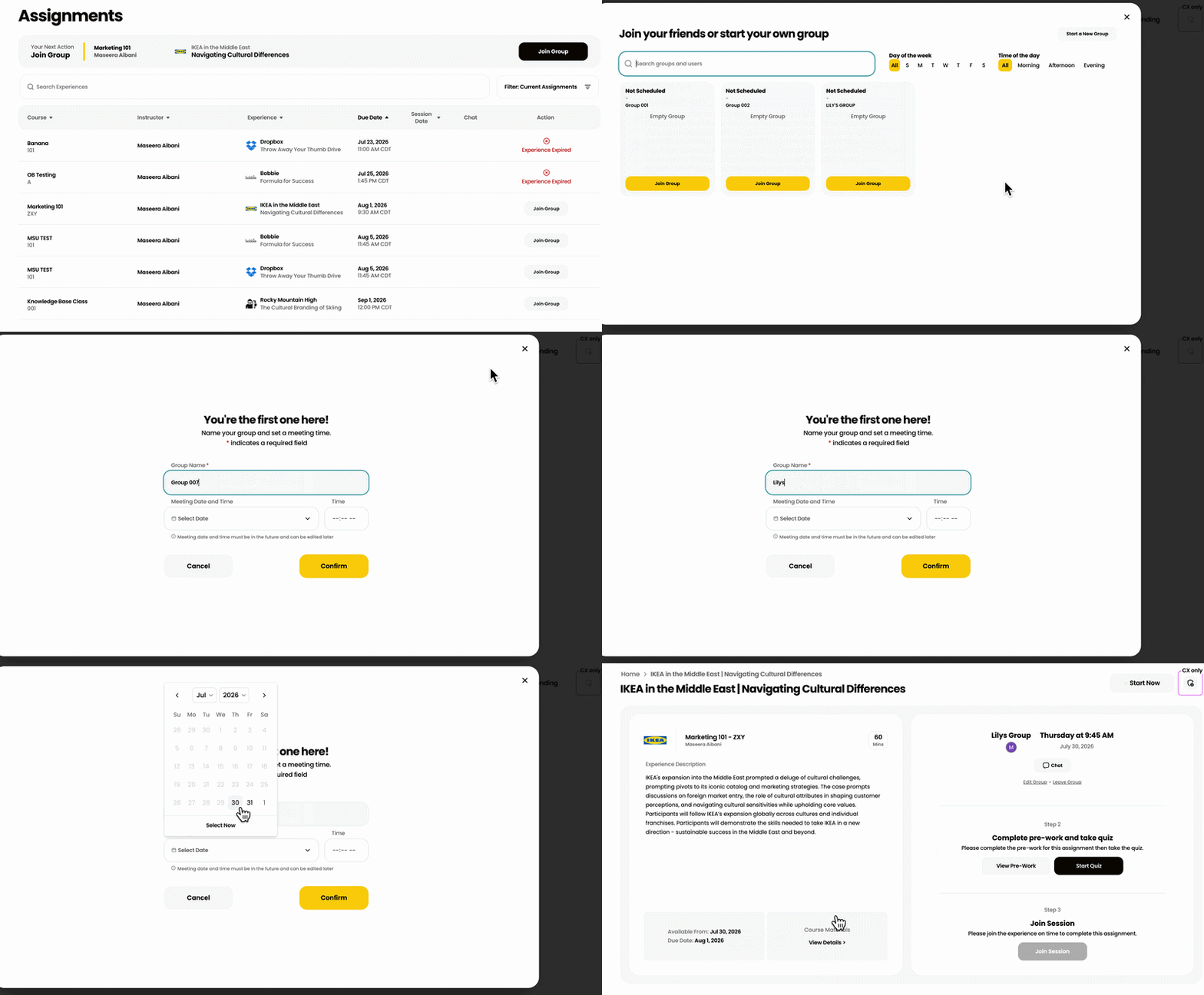
Schedule Your Group's Session.
- Use your group chat to agree on a date and time that works for everyone.
- Once you have decided, any group member can click Edit Group to lock in the session. Details can be changed later if needed. If a group member changes the session time, they should notify everyone of the new date or time.
- Keep in mind that your instructor may have set limits on available dates.
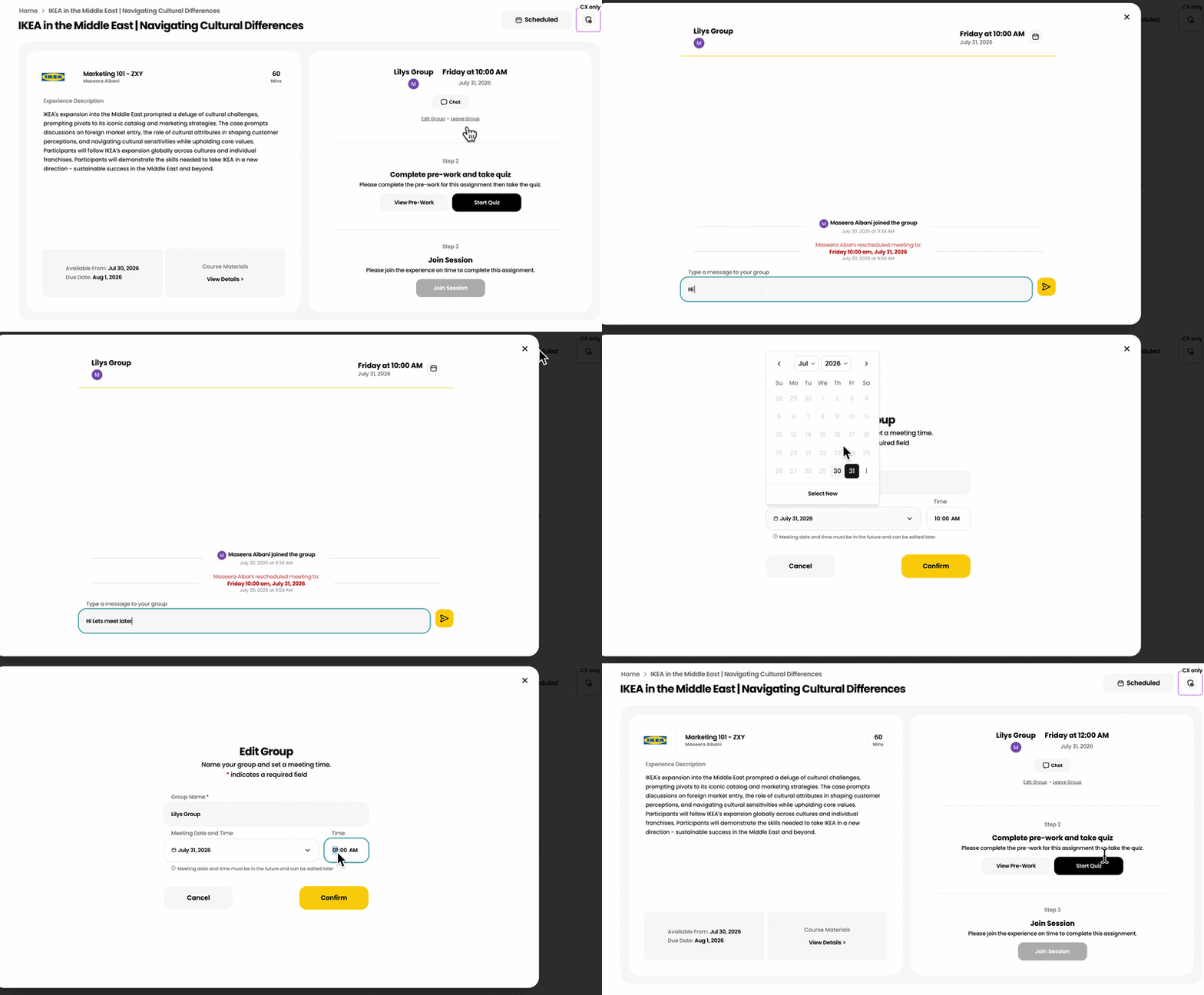
Complete your Pre-Work.
Before your session, check Course Materials for any pre-work or quiz your instructor has assigned, and complete it under Step 2.
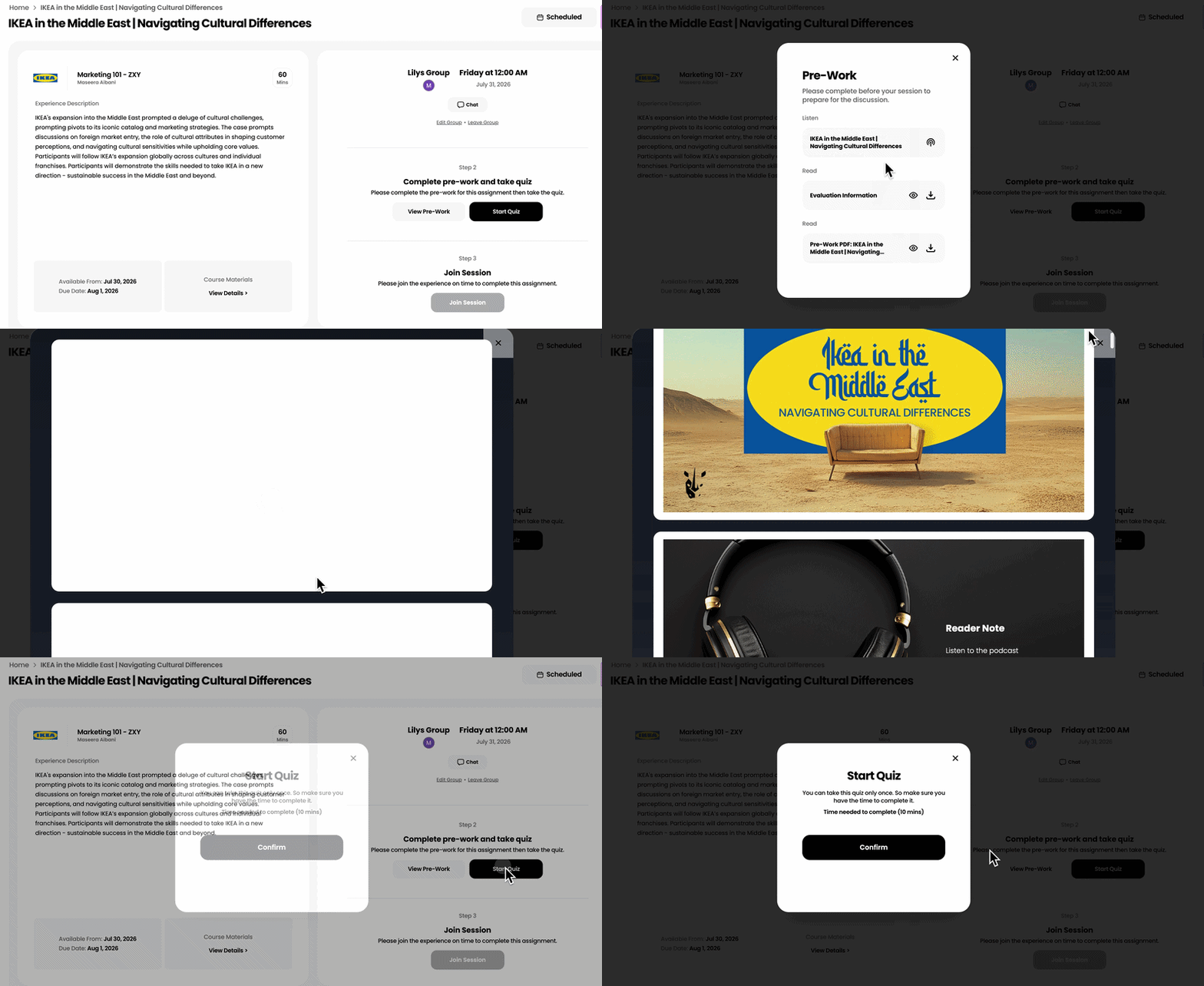
You're ready to join your session!
At your scheduled time, reopen your assignment from the home screen. If any group members are missing, consider waiting five minutes — after that, feel free to proceed.
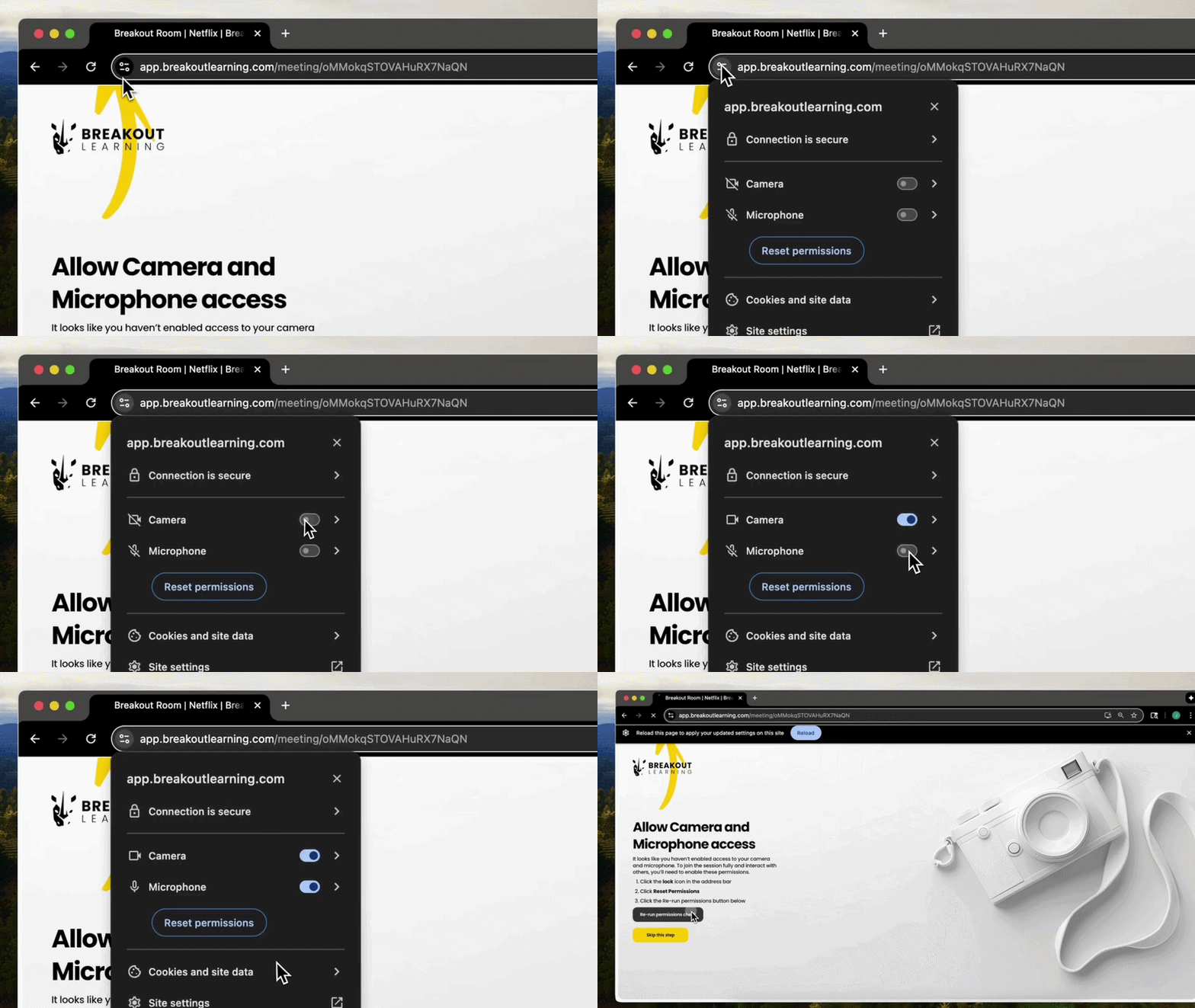
Grant Breakout access to your camera and microphone.
Your browser will ask for permission for Breakout to use your camera and microphone. Please grant access so you can be heard and seen in your group's discussion.
For assistance, visit the Breakout Learning Knowledge Base or contact support@breakoutlearning.com.