
Student Onboarding Guide
Get Started with Breakout Learning
1. Make sure your browser is up to date on your laptop or desktop:
Breakout is compatible with Chrome, Safari, or Microsoft Edge and is only available on a desktop or laptop computer.
2. Click the invitation link provided to you by your instructor.
3. Create your account:
Sign in with your institutional email address through Google (Gmail) or Microsoft (Outlook).
For subsequent logins, use app.breakoutlearning.com.
4. View your assignment(s):If you don't see your assignment(s) right away, refresh the page or re-click your invitation link, this will usually help them appear. Click into your assignment to get started.
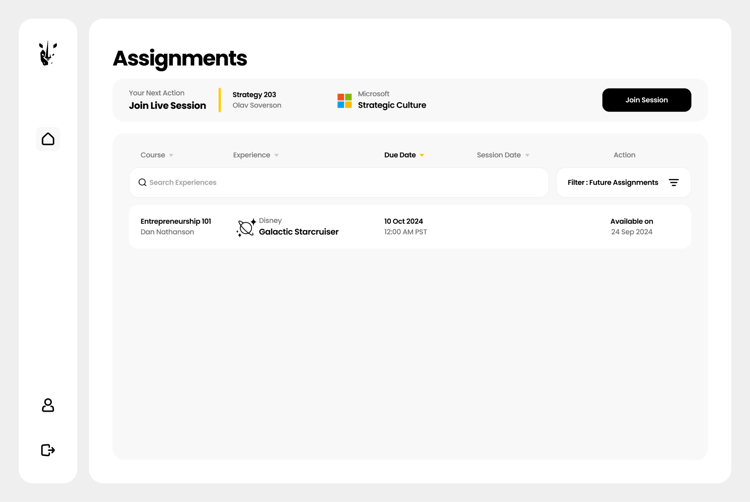
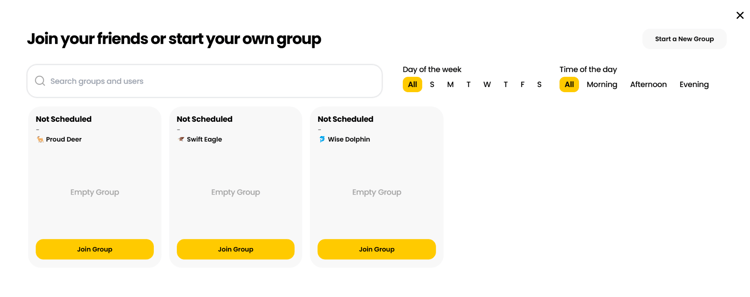
If your instructor has already placed you in a group, skip ahead to Step 6.
- Click Join Group.
- If there are empty pre-made groups available, join one and rename it.
- If not, click Start a New Group and give it a name that's easy for others to recognize.
Need to switch groups? Click Leave Group, then repeat the steps above to join or create a new one.
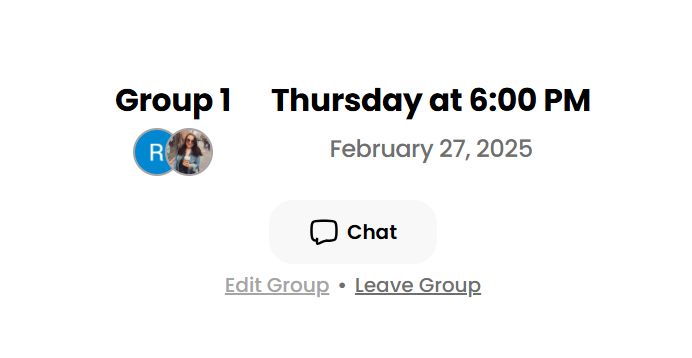
6. Schedule your group's session:
Note: Your instructor may have already scheduled a time for your group — check before scheduling your own.
- Use your group chat to agree on a date and time that works for everyone.
- Once you've decided, any group member can click Edit Group to lock in the session. Details can be changed later if needed. If a group member changes the session time, they should notify others so everyone is aware of the new date or time.
- Keep in mind your instructor may have set limits on available dates.
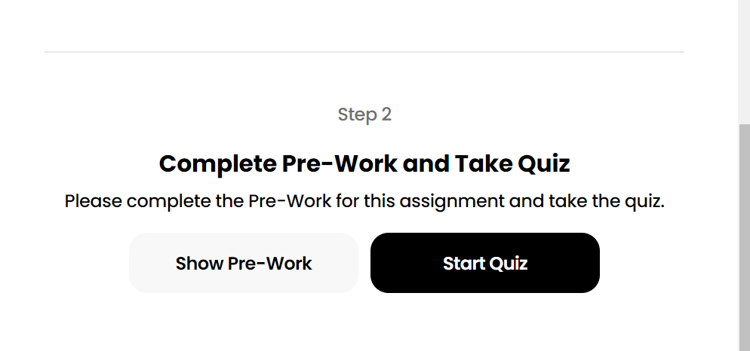
Before your session, check Course Materials for any pre-work or quiz your instructor has assigned, and complete it under Step 2.
8. Join your session:
When your scheduled time arrives, reopen your assignment from your home screen to join.
- If a group member hasn't joined yet, give it about five minutes before starting without them.
- Your browser will ask for camera and microphone permission — grant access so your group can see and hear you.
If your group is meeting in person for a Breakout session, each person still needs their own device and headphones or earbuds. Mute your mic when you're not speaking for the clearest audio.
Note: Breakout's AI evaluation currently supports discussions in English only.
For assistance, visit the Breakout Learning Knowledge Base or contact support@breakoutlearning.com.